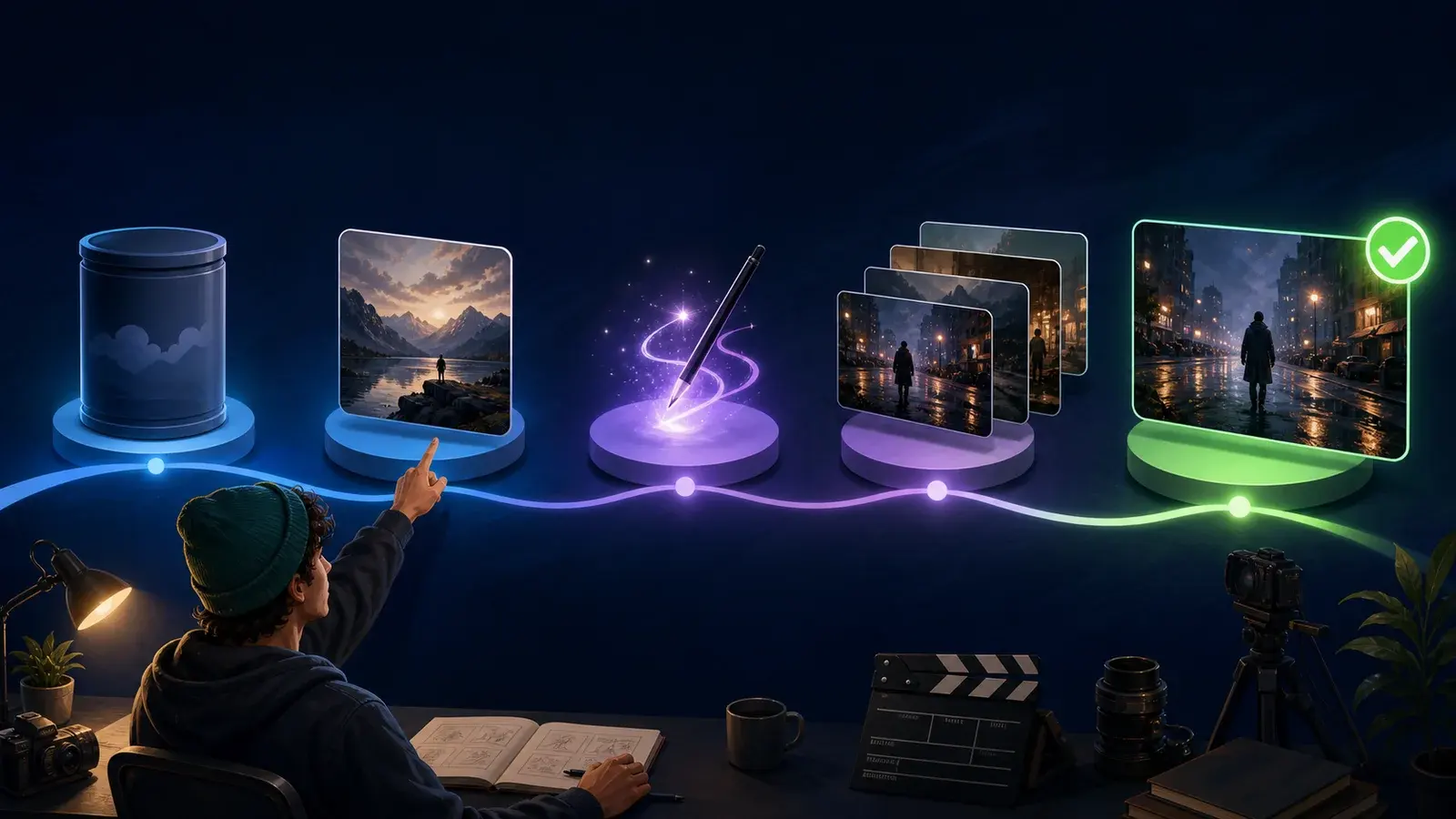
Choose Frames or Ingredients first
The most important decision is how the image should control the result:
| Goal | Use |
| Begin from an exact composition | Start frame |
| Transition between two compositions | First + last frames |
| Reuse a character or object as reference | Ingredients |
| Edit an uploaded video | Gemini Omni Flash video editing |
Animate a start image
Open a project
Create or open the project that should contain the source image and generated clip.Choose Video and Frames
Open the model selector, choose Video, then choose Frames.Add the start frame
Drag the image into the start-frame slot or select it from project assets.Describe motion
Prompt the subject action, environmental motion and camera behavior rather than redescribing every visible pixel.Choose settings
Confirm model, aspect ratio, duration, output count and credit cost.Generate and inspect
Check whether the opening composition is preserved and whether the requested motion remains physically coherent.
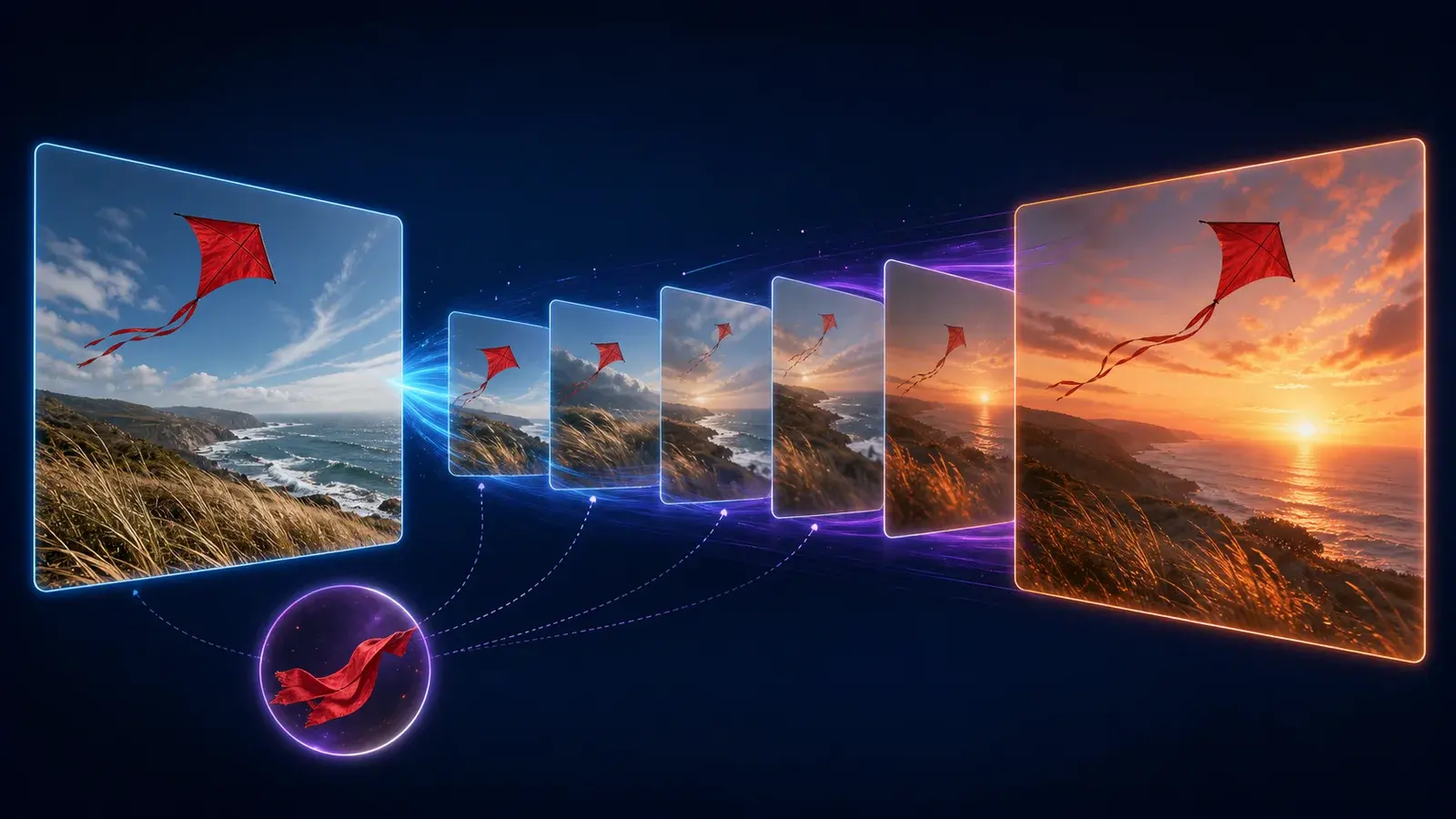
Create a first-to-last transition
Add both start and end frames, then describe what should happen between them. The two images should be compatible enough for a plausible transition. Google’s model matrix currently lists first-and-last support for Veo 3.1 and marks Omni Flash support as coming soon.
Use an image as an ingredient
Ingredients are better when the source image should guide identity rather than define the exact first frame. Google recommends clean subject or product references on a plain or segmented background.
In the prompt, explain how each reference should be used. Do not assume the model will infer whether an image represents a character, prop, location or style.
For a recurring person with a reusable name and voice, use a Google Flow Character instead of treating every appearance as an unrelated ingredient.
Prompt pattern
Starting from the supplied frame, [subject] performs [one action].
[Camera movement] while [environmental motion].
Preserve [identity/object details]; keep [continuity constraint].
Common problems
A prompt contradicts the supplied frame.
Multiple images use inconsistent lighting or style.
The image contains extra subjects that are unintentionally carried into the clip.
The requested camera move would reveal unseen geometry the reference cannot support.
Too many simultaneous actions make the transition unstable.
Change one variable at a time and save useful frames back to the project for future generations.
Sources and verification
Sources support product facts; editorial judgment remains FlowTool's own. Links were last checked on the date shown above.
- Create videos in Google FlowOfficial steps for text, frames, ingredients, voices and video generation.
- Google Flow models and supported featuresCurrent model, duration and feature support matrix.
- Edit videos and build scenes in Google FlowOfficial editing, extension, history and Scenebuilder instructions.
Frequently asked questions
Should I use a frame or ingredient in Google Flow?
Use a frame to control the opening or ending composition. Use an ingredient when the image should serve as a recurring character, object or style reference.
Can Google Flow animate between two images?
Google currently documents first-and-last frame generation for supported Veo 3.1 workflows.
What image background works best for an ingredient?
Google recommends subject or product references on a plain or segmented background.
Visible FAQ is provided for readers. FlowTool does not promise FAQ rich results.
Continue with FlowTool
Build a clearer Google Flow workflow.
Use the beginner workflow, then choose a prompt template or compare alternatives based on your actual constraints.
Open the beginner tutorial