Google Flow Characters in one sentence
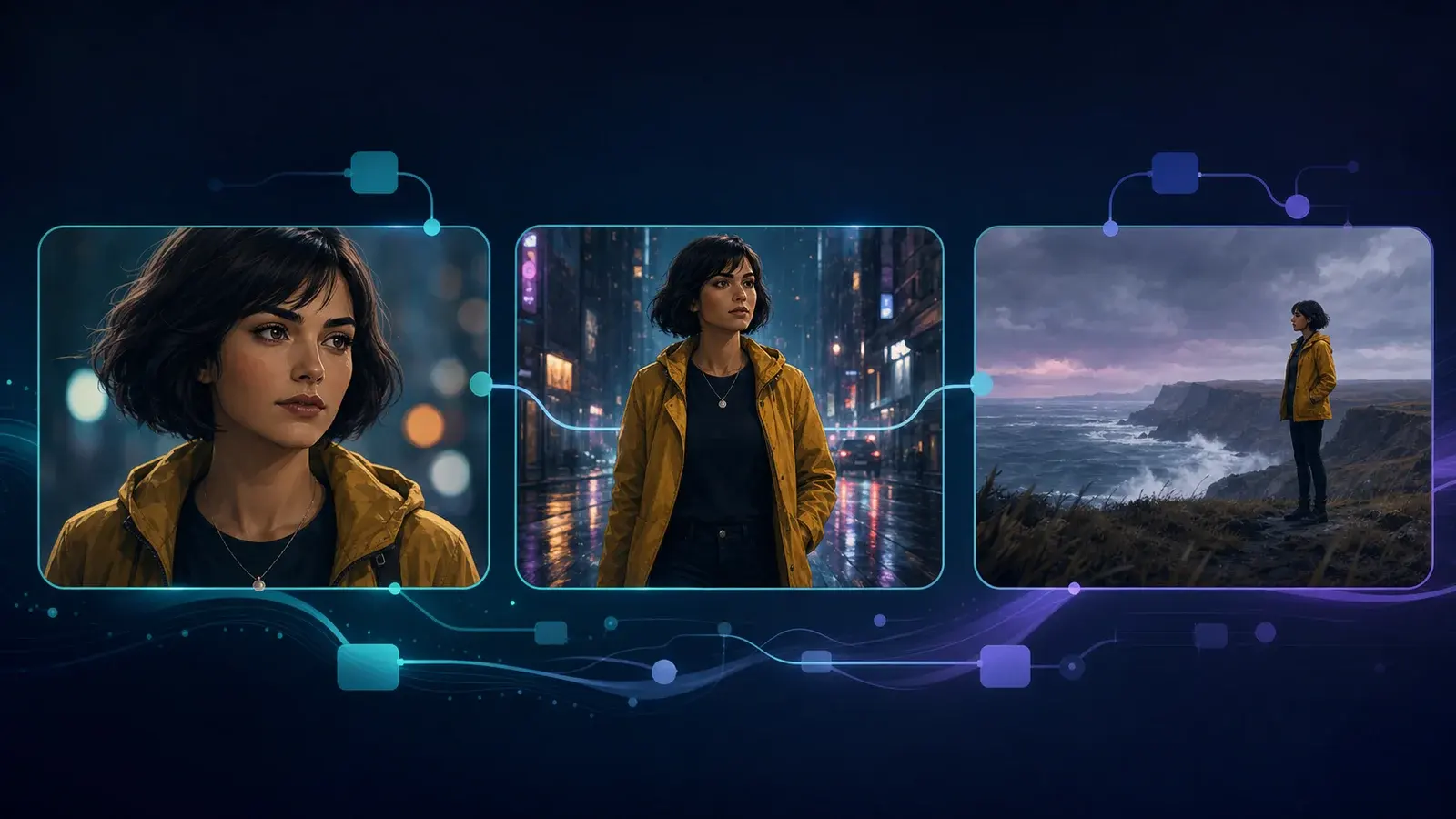
A Google Flow Character is a named project asset that keeps selected appearance references, descriptive information and a voice together so you can reuse the same identity across new generations.
This is more reliable than repeatedly uploading a slightly different portrait for every shot because the project keeps one reusable character reference.
Characters versus Ingredients
| Need | Better starting point |
| Reuse a named person with an assigned voice | Character |
| Refer to a product, prop, location or style | Ingredient |
| Control the exact opening or ending composition | Frame |
| Refer to your eligible personal avatar | @me |
Read the Frames and Ingredients guide when the reference is not a reusable named character.
Prepare the reference images
Google currently allows one or two images when creating a character and requires at least one. Use references that make the identity easy to interpret:
Show the face and defining visual traits clearly.
Avoid extra people, crowded backgrounds and conflicting wardrobe details.
Use compatible lighting, age, hairstyle and proportions across both references.
Prefer a neutral or segmented background when the reference will also be used as an Ingredient.
A “character sheet” can be useful preparation, but it is an input asset rather than a separate Flow control. Keep front, three-quarter and full-body views visually consistent before uploading them.
Create a character
Open Characters
Open the correct Flow project, choose Characters in the project navigation and select New Character.Describe the identity
Write a concise description of the stable traits that should define the character.Add reference images
Upload or generate one or two images showing the intended appearance.Generate the character
Review the generated character before using it in a longer sequence.Name it
Choose a short, unique name that will be easy to reference in prompts.Assign a voice
Select a preset voice or create a custom voice when the feature is available for the account.Save the character
Add optional character information, then finish the setup so the asset remains available in the project.
Use the character in a prompt
Type @ followed by the saved character name, then describe the shot and what the character should do.
@Mara walks through the same foggy station at blue hour.
Medium tracking shot, restrained expression, charcoal coat,
preserve facial identity, hairstyle and wardrobe construction.
Use @me only for the separate personal-avatar feature when it is available to the account. Do not assume that @me and a project Character have identical access rules.
Keep the character consistent across clips
Reuse the saved Character instead of uploading a new face reference for every shot.
Repeat only the identity details that matter for continuity: wardrobe, hairstyle, age, voice and key accessories.
Change one production variable at a time, such as action, camera or location.
Avoid adding an Ingredient that depicts a conflicting version of the same person.
Save approved frames and selected versions before building the next shot.
Keep screen direction, lighting and environment language consistent when clips will be assembled together.
For a multi-shot sequence, move selected clips into the Scenebuilder workflow only after the character and continuity anchors are stable.
Why a character may still change
Character inconsistency can come from unclear references, contradictory prompt details, large pose or camera changes, unsupported model behavior or safety restrictions. A reusable Character is a continuity control, not an exact identity lock.
If a control is missing, confirm the active model, account and regional availability before rebuilding the character. Then simplify the prompt and test one short shot before spending credits on multiple outputs.
Sources and verification
Sources support product facts; editorial judgment remains FlowTool's own. Links were last checked on the date shown above.
- Manage Google Flow projects, assets and collectionsOfficial project, character, collection, download and sharing instructions.
- Create videos in Google FlowOfficial steps for text, frames, ingredients, voices and video generation.
- Google Flow models and supported featuresCurrent model, duration and feature support matrix.
- Where you can use Google FlowCurrent supported countries, languages, age requirement and feature restrictions.
Frequently asked questions
How many images do I need for a Google Flow Character?
Google currently requires at least one image and allows one or two reference images when creating a Character.
How do I reference a saved character in Google Flow?
Type @ followed by the saved character name in the prompt, then describe how that character should appear and act in the shot.
What is the difference between a Character and an Ingredient?
A Character is a named reusable identity that can include visual and voice information. An Ingredient is a more general reference for a person, product, object, location or style.
Does a Google Flow Character guarantee perfect consistency?
No. It gives the model a reusable identity reference, but output can still vary with the model, prompt, pose, camera, conflicting inputs and current product limitations.
Visible FAQ is provided for readers. FlowTool does not promise FAQ rich results.
Continue with FlowTool
Build a clearer Google Flow workflow.
Use the beginner workflow, then choose a prompt template or compare alternatives based on your actual constraints.
Open the beginner tutorial