
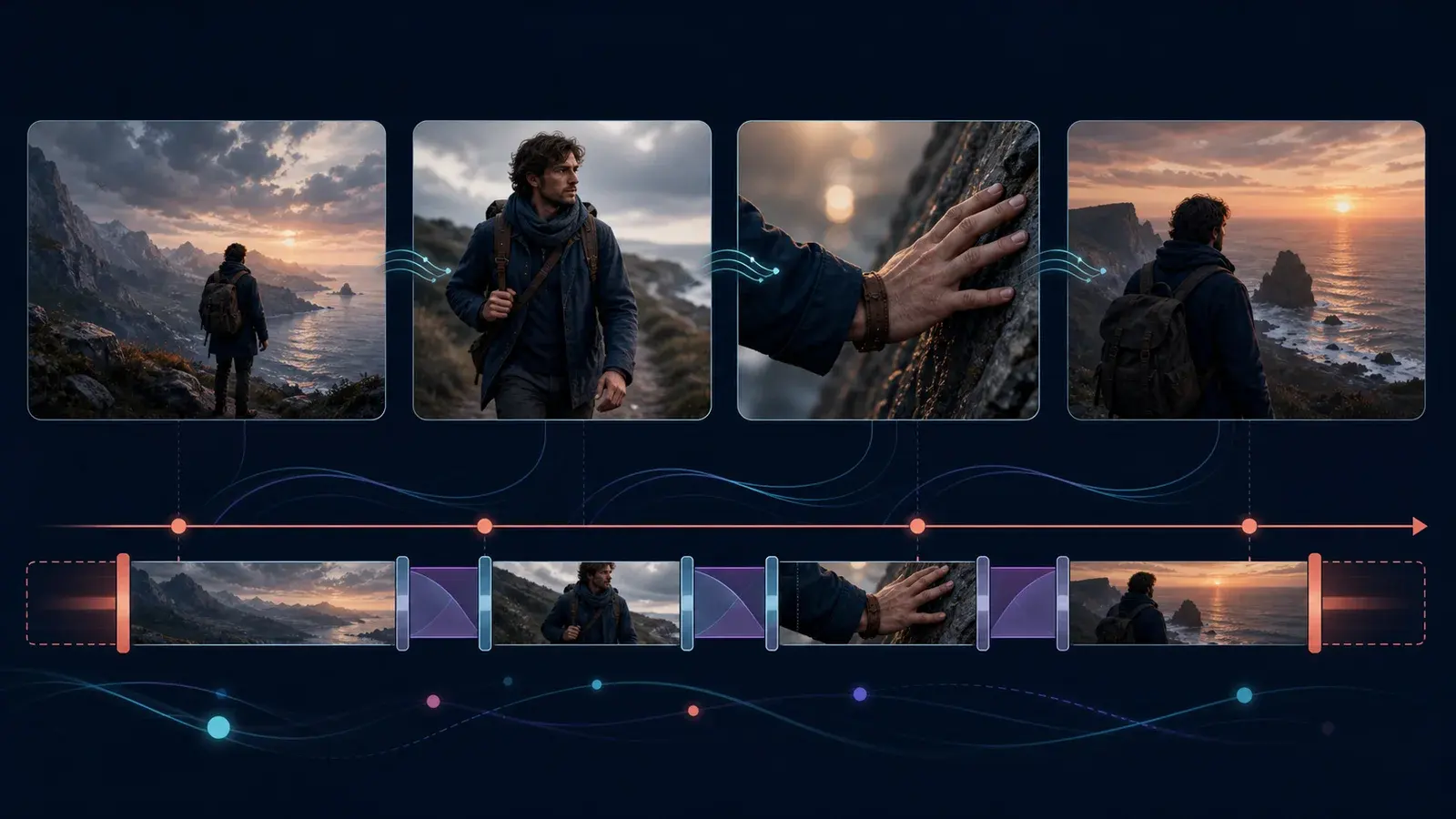
Storyboard planning versus Scenebuilder
A storyboard describes intended shots before generation. Scenebuilder is Flow’s current tool for arranging generated clips into a sequence. Keep the planning brief and the assembled scene conceptually separate.
Plan the shot list
Use a simple table before generating:
| Shot | Purpose | Subject action | Camera | Continuity anchor |
| 1 | Establish location | Character enters | Wide push-in | Wardrobe, time of day |
| 2 | Reveal object | Character turns | Medium track | Same screen direction |
| 3 | Detail | Hand touches object | Macro slide | Object shape and color |
One shot per generation is easier to evaluate than asking for a complete edited film in one prompt. Give every shot a purpose before generating it, then keep only the version that serves that purpose.
Build the project
Create one project
Keep all assets, uploads, characters and scenes for the sequence together.Create reusable references
Save useful images and frames, and create a reusable Character when the same person must appear across shots.Generate shot candidates
Use consistent identity, environment and lighting language across the sequence.Save selected versions
Use History to retain the exact version intended for the sequence.Extend eligible clips
For a Veo-generated clip that ends too early, choose Extend and describe only how the existing action should continue.Add clips one by one
Hover over each selected clip, choose More and add it to the scene.Reorder, trim and preview
Drag clips into order, trim their edges and preview the sequence.Download the scene
Export the assembled scene as one file when it is ready for a downstream editor or upload.
Extend a clip before assembly
Google currently limits Extend to Veo-generated videos. Open the selected clip, choose Extend, then describe the next simple action while repeating essential continuity constraints.
An extended clip cannot use other edit modes such as insert, remove or camera controls. Decide whether extension or another edit is more important before building the final version.
Continue the same walking action for one more shot beat.
Maintain camera direction, pace, blue-hour lighting, wardrobe,
character identity and the station layout. Introduce no new subject.
Save a frame for the next shot
Pause a useful video frame and choose Save frame. The saved image can become a start frame, end frame or Ingredient for a later generation. This creates a stronger visual handoff between adjacent shots than trying to recreate the last composition from text alone.
Organize assets with Collections
Collections work like folders and can contain nested collections. Use them for references, selects, alternates and rejected material. Flow Agent can also rename selected files or group them into a Collection.
Preserve continuity
Repeat only the continuity information that must survive:
Saved Character, Ingredient or product reference.
Wardrobe and key object details.
Time of day and light direction.
Screen direction.
Lens or camera language.
Environment features visible across the cut.
Avoid adding new style adjectives to every shot unless the change is intentional. If a face, wardrobe or voice changes, stabilize the Character workflow before generating more clips.
Reorder, trim and preview
Scenebuilder supports a focused assembly pass:
Drag clips into narrative order.
Trim unwanted frames from the beginning or end of each clip.
Preview the complete sequence and check action, screen direction and pacing at every cut.
Return to the project when a shot needs regeneration; Scenebuilder is not the place for layered audio, effects or detailed color work.
Keep a downstream editor in the workflow when the sequence needs music, multiple audio tracks, titles, transitions or detailed finishing.
Download and YouTube limits
Flow currently supports direct YouTube publishing for individual eligible clips. Google says a full Scenebuilder sequence must first be downloaded as a single file and then uploaded through YouTube Studio.
Common storyboard mistakes
Generating before defining the job of each shot.
Changing aspect ratio or visual references mid-sequence.
Keeping no record of the selected prompt and model.
Extending a clip after planning to use another incompatible edit mode.
Adding every generated variation instead of only the approved version.
Treating Scenebuilder as a full multi-track post-production editor.
Deleting a shared asset before confirming how it is used elsewhere.
If the Add to Scene or Extend control is missing, confirm that the asset is a supported video, check the active model and account availability, and review Google’s current feature documentation before regenerating the clip.
Sources and verification
Sources support product facts; editorial judgment remains FlowTool's own. Links were last checked on the date shown above.
- Edit videos and build scenes in Google FlowOfficial editing, extension, history and Scenebuilder instructions.
- Manage Google Flow projects, assets and collectionsOfficial project, character, collection, download and sharing instructions.
- Use the Google Flow AgentCurrent Agent availability, capabilities, session behavior and credit rules.
Frequently asked questions
Does Google Flow have a storyboard tool?
Flow can support storyboard planning through projects and references, while its current assembly tool is called Scenebuilder.
How do I save a Google Flow scene?
Arrange and trim selected clips in Scenebuilder, preview the sequence and download the completed scene as one file.
Can I extend a clip before adding it to Scenebuilder?
Yes, when it is a supported Veo-generated video. Google currently says extended clips cannot also use insert, remove or camera edit modes.
Can I upload a complete Scenebuilder sequence directly to YouTube?
Google currently says direct Flow upload supports individual clips. Download the full sequence and upload it through YouTube Studio.
Visible FAQ is provided for readers. FlowTool does not promise FAQ rich results.
Continue with FlowTool
Build a clearer Google Flow workflow.
Use the beginner workflow, then choose a prompt template or compare alternatives based on your actual constraints.
Open the beginner tutorial